Make the form's layout in any app, save it as a PDF, then add the fields. Open Create fillable PDF, drop your PDF in, and tap the page to place text boxes, paragraph boxes, checkboxes and dropdowns where the answers go. Name each field, press Download fillable PDF, and anyone can type into it in free apps like Adobe Acrobat Reader, Chrome, Edge or Mac Preview. It's free, needs no account, and your PDF isn't uploaded.
Why a Word or Google Docs form isn't fillable
When you save a document as a PDF, the lines and boxes you drew become part of the page's picture. There's nothing to click into, so people have to print, write and scan, or squeeze text in with an annotation tool.
A fillable PDF has real form fields on top of the page: boxes that take typing, ticks and choices, and that every PDF app recognises. Word can't add these when it saves a PDF. In a Microsoft Q&A answer, a Microsoft MVP puts it plainly: there's no option in Word to create a PDF form, and you need a PDF tool for that step.
Before you start: lay out the page
Design the form as a normal document first, in Word, Google Docs, Canva or anything else:
- Write each question as a label: Full name, Email, Date.
- Leave a line or an empty box after each one, wide enough for the answer.
- For yes/no or pick-several questions, draw small squares where the ticks go.
- Leave a big empty box for longer answers, such as comments.
Then save or export it as a PDF. Already have a paper form? Scan it with Scan to PDF and use that.
How to make a PDF fillable, step by step
Open Create fillable PDF and add your PDF
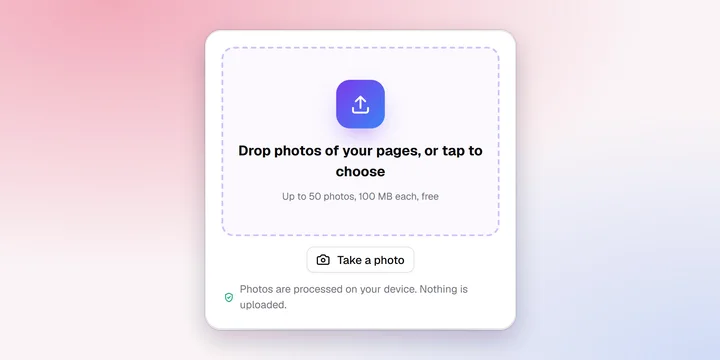
Drop the file into Create fillable PDF, or tap to choose it. Your form appears page by page.
Pick a field type and tap where it goes
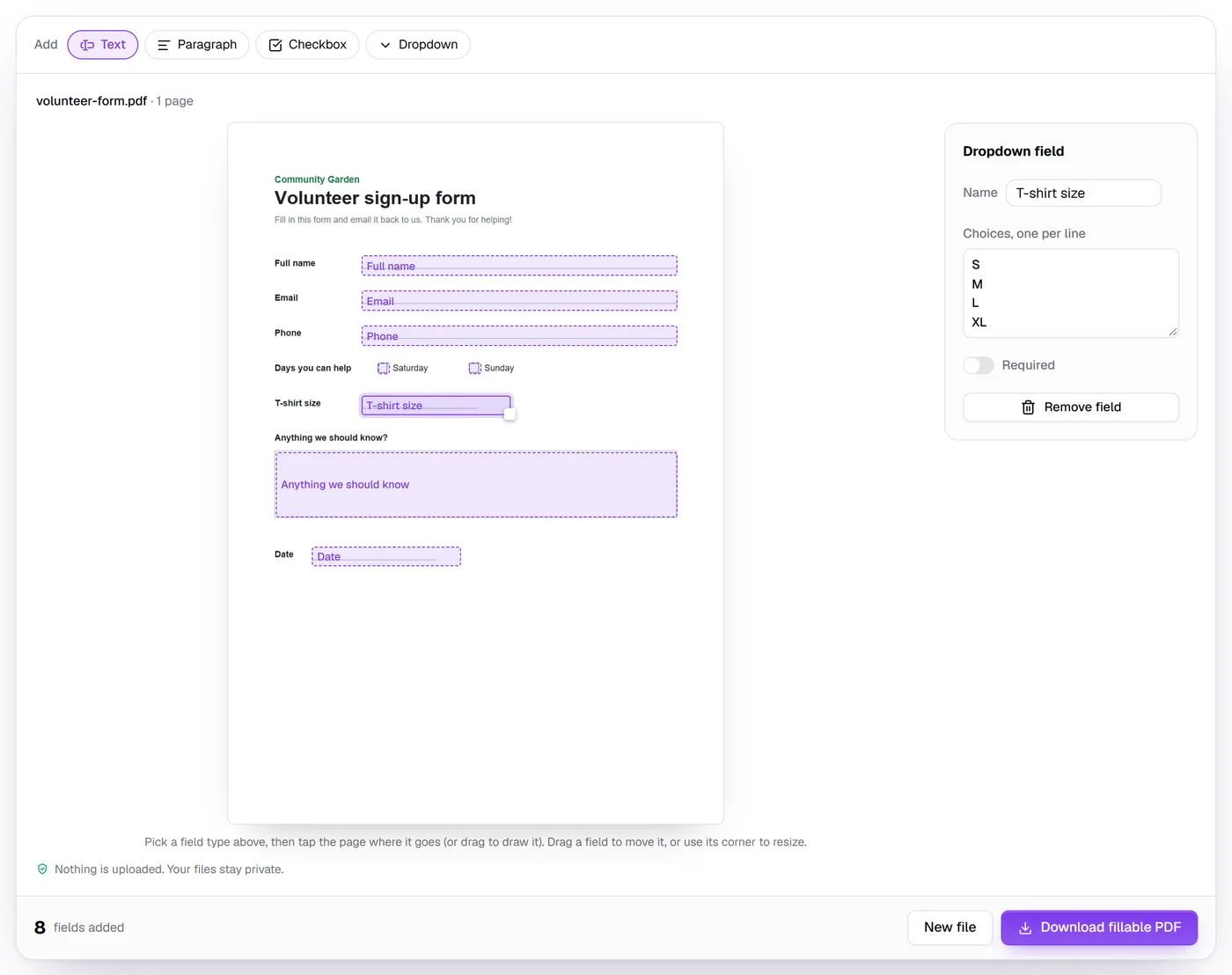
Choose Text, Paragraph, Checkbox or Dropdown at the top, then tap the page on the line or box where the answer belongs. You can also drag to draw a field at exactly the size you want.
Size each field to its space
Drag a field to move it. Drag its corner to make it as wide as the line, or as tall as the comment box.
Name it, and set any choices
Tap a field to open its settings. Give it a clear name like Full name or T-shirt size. For a dropdown, type the choices one per line. Switch on Required for answers you must have.
Download the fillable PDF
Press Download fillable PDF. The file keeps your name with -fillable added.
Which field to use
| Field | Use it for |
|---|---|
| Text | One-line answers: name, email, phone, date, ID number |
| Paragraph | Longer answers that need several lines: comments, address, reasons |
| Checkbox | Yes or no, or "tick all that apply". Add one per option. |
| Dropdown | One answer from a fixed list: sizes, departments, branches |
A dropdown keeps answers tidy: everyone picks "M" instead of writing "medium", "Med" or "m". Use it whenever there's a set list.
Test the form before you send it
Open the downloaded file and fill it in yourself, as the person receiving it would. You can do that in Fill PDF form on Quikdo, or in any of these free apps:
- Adobe Acrobat Reader: fills and saves forms (Adobe's FAQ confirms anyone with the free Reader can fill a form in).
- Chrome: open the PDF in the browser, type into the fields, then download it "with your changes" (Google's help).
- Microsoft Edge: has basic form filling built in.
- Mac Preview: click a field and type (Apple's guide).
- iPhone: open the PDF in the Files app and tap AutoFill to type into the fields (Apple's guide).
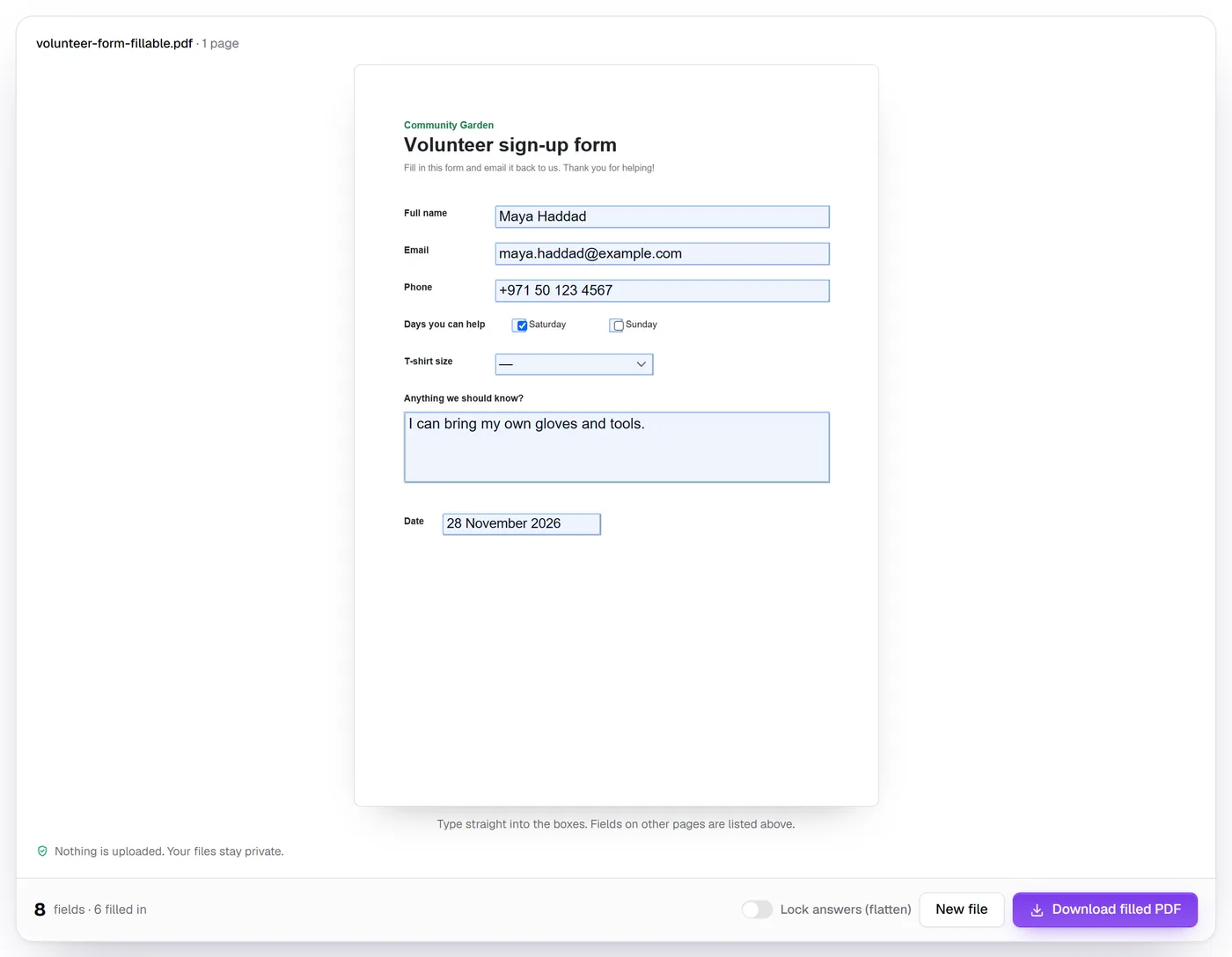
Check three things: every field takes typing, the text fits the box, and nothing covers the printed labels.
Tips for a form people can actually fill in
- Make text fields as wide as the line. A narrow box cuts off long names and email addresses.
- Name fields the way you'd ask the question. The names label each answer, which helps when you read the replies.
- Mark only the essentials as required. Too many required boxes and people give up.
- Want a signature? Add a text field labelled Signature for a typed name, or ask people to sign the filled form with Sign PDF.
- Lock the answers when it comes back. Flatten PDF turns the filled fields into normal page content, so nobody can change them later.
Other ways to make a fillable PDF
- Adobe Acrobat: Prepare a form finds fields on the page for you (Adobe's guide). It's part of paid Acrobat, not the free Reader.
- Mac Preview: good for filling in forms, but Apple's guide only covers filling them in and adding text boxes, not creating real form fields.
- Online form makers that upload your file: they work, but the PDF passes through their server. Quikdo adds the fields in your browser, so the form never leaves your device.
FAQ
How can I create a fillable PDF for free?
Make the layout in any app and save it as a PDF. Then open Create fillable PDF, place text boxes, checkboxes and dropdowns, and download. No account or payment is needed.
Can I make a fillable PDF from a Word document?
Yes: save the Word document as a PDF first, then add the fields to that PDF. Word itself can't create PDF form fields.
Will people need Adobe to fill it in?
No. The free Adobe Acrobat Reader works, and so do Chrome, Edge, Mac Preview and the iPhone Files app.
Can I add fields to a scanned paper form?
Yes. Scan it to a PDF, then place the fields on top of the printed lines and boxes.
Can I change the form after downloading it?
Open the fillable PDF in Create fillable PDF again to add more fields. Fields already in the file stay as they are.
Is my PDF uploaded?
No. The fields are added by your browser, and the file stays on your device.