On iOS 26 or later, open the Preview app, tap Scan Documents, photograph each page, then tap Done. You get one PDF with all the pages. On older iPhones, use Notes: in a note, tap the Attachments button, then Scan Documents. Without either app, Scan to PDF does the same in Safari.
Which way to use
| Way | Works on | Best for |
|---|---|---|
| Preview app | iOS 26 and later | The quickest way to a PDF file you can rename, shrink and upload |
| Notes app | Any recent iOS | Older iPhones, or keeping scans with your notes |
| Quikdo Scan to PDF | Safari or Chrome, iPhone or Android | A borrowed phone, Android, or a black-and-white scan for a form |
All three straighten the page, crop away the background and save every page into one PDF.
Scan with the Preview app (iOS 26 and later)
Open Preview and tap Scan Documents
Preview is Apple's built-in app for PDFs and images. If you can't find it, swipe down on the Home Screen and search for "Preview".
Hold the phone over the page
Keep the whole page on screen and hold still. The iPhone captures the page by itself when it finds the edges. To take each photo yourself, tap Auto so it changes to Manual, then tap the shutter button.
Scan the other pages
Turn to the next page and repeat. Each scan is added to the same document, in order.
Fix any page, then tap Done
Tap a thumbnail to crop, rotate or change the colour of that page. When every page looks right, tap Done. The scan is saved as a PDF.
Give it a clear name
Open the PDF, tap the button next to the file name, then tap Rename. Use something simple like bank-statement-oct-2026. Some upload portals reject names with spaces or symbols. Move, in the same menu, puts it in another folder in Files.
Scan with the Notes app (any recent iPhone)
Open a note and tap the Attachments button
Open Notes, start a new note, tap the Attachments button and choose Scan Documents.
Capture each page
Capture works the same way: the iPhone takes the photo when it finds the page. In manual mode, tap the shutter, drag the corners if needed, then tap Keep or Retake. Scan the remaining pages, then tap Done. Notes saves them as one PDF in the note.
Get the PDF out of Notes
Tap the More button on the scan and choose Share, then Save to Files, or send it straight to Mail or WhatsApp.
Don't use "Markup" to export the whole note as a PDF. Apple's own help page says that when you export a note this way, a multi-page scan keeps only its first page. Share the scan itself, as in step 3.
No app: scan in your browser
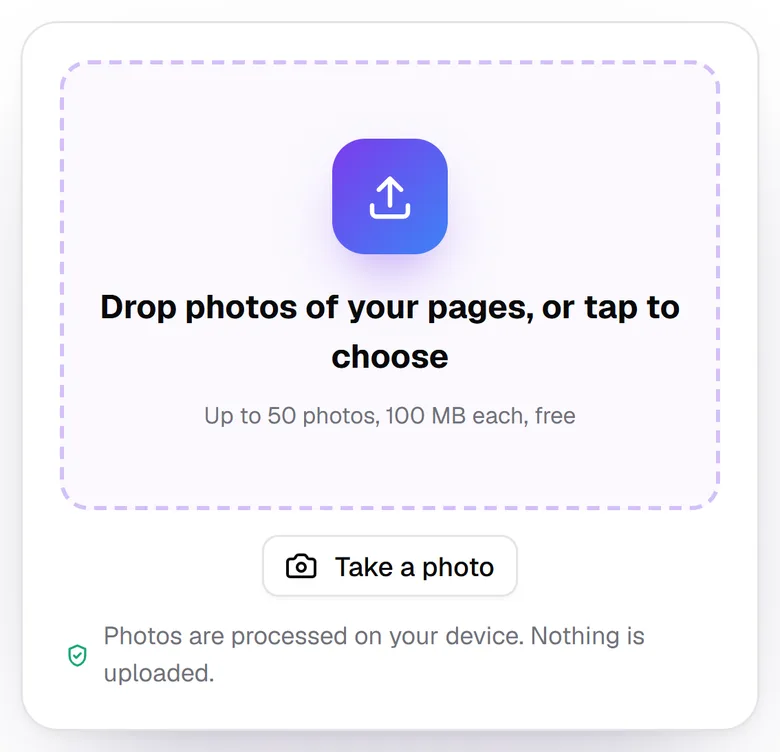
If the iPhone isn't yours, if you're on Android, or if a form wants a clean black-and-white page, open Scan to PDF in Safari or Chrome.
- Tap Take a photo and photograph the page.
- The page edges are found for you. Drag a corner if one is off, or tap Whole photo to keep everything.
- Choose Enhanced, Black and white or Gray. Black and white makes text crisp and files small.
- Tap + Add page for the next page, then Save as PDF.
The photos are processed on your phone and never uploaded, and you can scan up to 50 pages into one PDF for free.
Get a clean scan the first time
- Put the page on a dark, plain surface. A dark table helps the iPhone find the white page's edges. A white page on a white bed sheet often fails.
- Use daylight, not the flash. Flash adds a bright spot, and overhead lights cast your phone's shadow on the page. Stand with the window beside you.
- Hold the phone flat above the page. Tilting it makes the far edge of the page look smaller. The apps correct some of this, but less is better.
- Flatten folded pages. Creases and curled corners show up as shadows. Press the page flat, or put a book on the folded edge.
- Check small print before you send it. Zoom in on account numbers, dates and stamps. If anything is blurry, scan that page again.
If the PDF is too big to upload
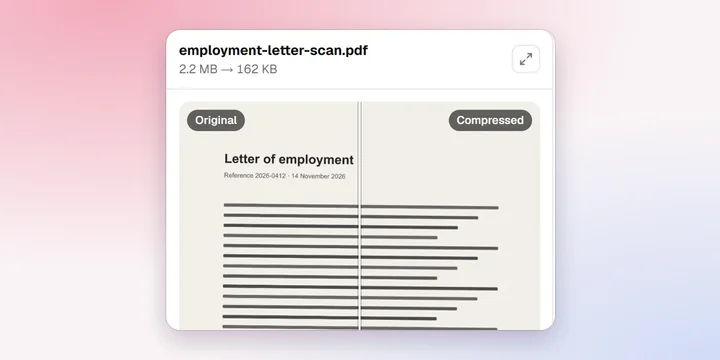
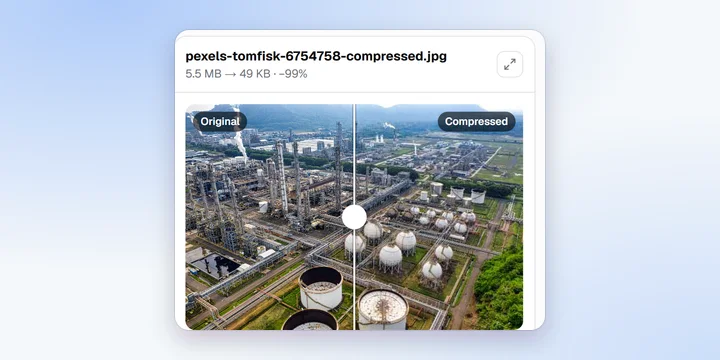
Scans are photos, so a few pages can be several MB. Many forms allow far less.
- In Preview: open the PDF, tap the button next to the name, tap Export, choose PDF, and turn on Optimize Images for Screen and Save Images as JPEG. Both make the file smaller.
- To hit an exact size: use Compress PDF and pick a target, such as under 200 KB or under 1 MB. Our guide How to compress a PDF to under 200 KB has the details.
- Text-only pages: a black-and-white scan is usually much smaller than a colour one, and easier to read.
Sign, combine or edit the scan
- Sign it: on iPhone, open the PDF, tap the Markup button, tap the Add button in the Markup toolbar, then Add Signature. Or use Sign PDF in your browser.
- Add it to another PDF: Merge PDF puts several files into one, in the order you choose.
- Reorder or delete pages: Organize PDF.
- Make the text searchable: OCR PDF turns a scanned page into text you can search and copy.
Sources
The iPhone steps follow Apple's iPhone User Guide, checked on 21 November 2026: Scan in Preview, Scan in Notes, Export notes and Export or compress PDFs in Preview. Button names can change slightly between iOS versions.
FAQ
How do I scan a document on my iPhone?
On iOS 26 or later, open Preview and tap Scan Documents. On older versions, open Notes, tap the Attachments button in a note, then Scan Documents. Both save the pages as one PDF.
How do I scan several pages into one PDF?
Keep scanning before you tap Done. Every page you capture is added to the same document, in order.
Where is my scanned PDF saved?
Preview keeps it as a PDF file you can rename and move to any folder in Files. Notes keeps it inside the note, so share it and choose Save to Files to get a separate file.
Why does my exported note only have one page?
Exporting a whole note as a PDF keeps only the first page of a multi-page scan, according to Apple. Share the scan itself instead.
Do I need a scanner app from the App Store?
No. Preview and Notes come with the iPhone, and Quikdo Scan to PDF works in Safari with nothing to install.
How do I make the scan smaller?
Export it from Preview with Optimize Images for Screen turned on, scan text pages in black and white, or use Compress PDF with a target size.