1 MB is 1,000 KB (or 1,024 KB, depending on who's counting), so a 3 MB phone photo is about 60 times too big for a 50 KB form. To get it under, open Compress image to 50 KB, or the 20 KB or 100 KB version, drop the photo in and download the result. If a form rejects a file that looks exactly right, aim a little lower, for example 48 KB for a 50 KB limit.
KB and MB in plain numbers
File size is counted in bytes. KB (kilobytes) and MB (megabytes) are just bigger units.
| Size | In KB | Typical file |
|---|---|---|
| 0.02 MB | 20 KB | A signature or a small form photo |
| 0.05 MB | 50 KB | A passport-size photo for an online form |
| 0.1 MB | 100 KB | A clear photo for a form or profile |
| 0.5 MB | 500 KB | A photo for email or a website |
| 1 MB | 1,000 KB | A photo straight from an older phone |
| 3–6 MB | 3,000–6,000 KB | A photo straight from a recent phone |
So "0.05 MB" and "50 KB" on a form mean the same thing. To turn MB into KB, multiply by 1,000. To turn KB into MB, divide by 1,000.
1,000 or 1,024? Why the same file shows two sizes
There are two ways to count. In the decimal way, 1 KB is 1,000 bytes. In the binary way, 1 KB is 1,024 bytes.
- Windows File Explorer counts 1 KB as 1,024 bytes.
- Mac and iPhone count 1 KB as 1,000 bytes. Apple explains that only very old versions (iOS 10 and earlier) used the binary count.
So a file of 51,200 bytes is 50 KB on Windows but 51.2 KB on a Mac. Upload portals rarely say which they use. A file that sits right on the limit can pass on one count and fail on the other.
The fix is simple: leave a small margin. For a 50 KB limit, aim for 45–48 KB. For 20 KB, aim for about 18 KB. Quikdo counts 1 KB as 1,024 bytes, like Windows, so if a form rejects a Quikdo file that says exactly 50 KB, set the target to 48 KB and try again.
Why phone photos are so big
A photo has two things that make up its size:
- Pixels. A recent phone camera takes photos of 12 megapixels or more, such as 4,032 × 3,024. Forms usually need a few hundred pixels across.
- Detail and quality. JPG files throw away detail you can't easily see. The less detail is kept, the smaller the file. A busy scene (trees, crowds, text) needs more KB than a face against a plain wall.
To get from MB to KB, a tool lowers one or both. Lowering quality alone rarely reaches 50 KB from a large photo; making the picture smaller in pixels does most of the work.
A real example: 5.5 MB to 20, 50 and 100 KB
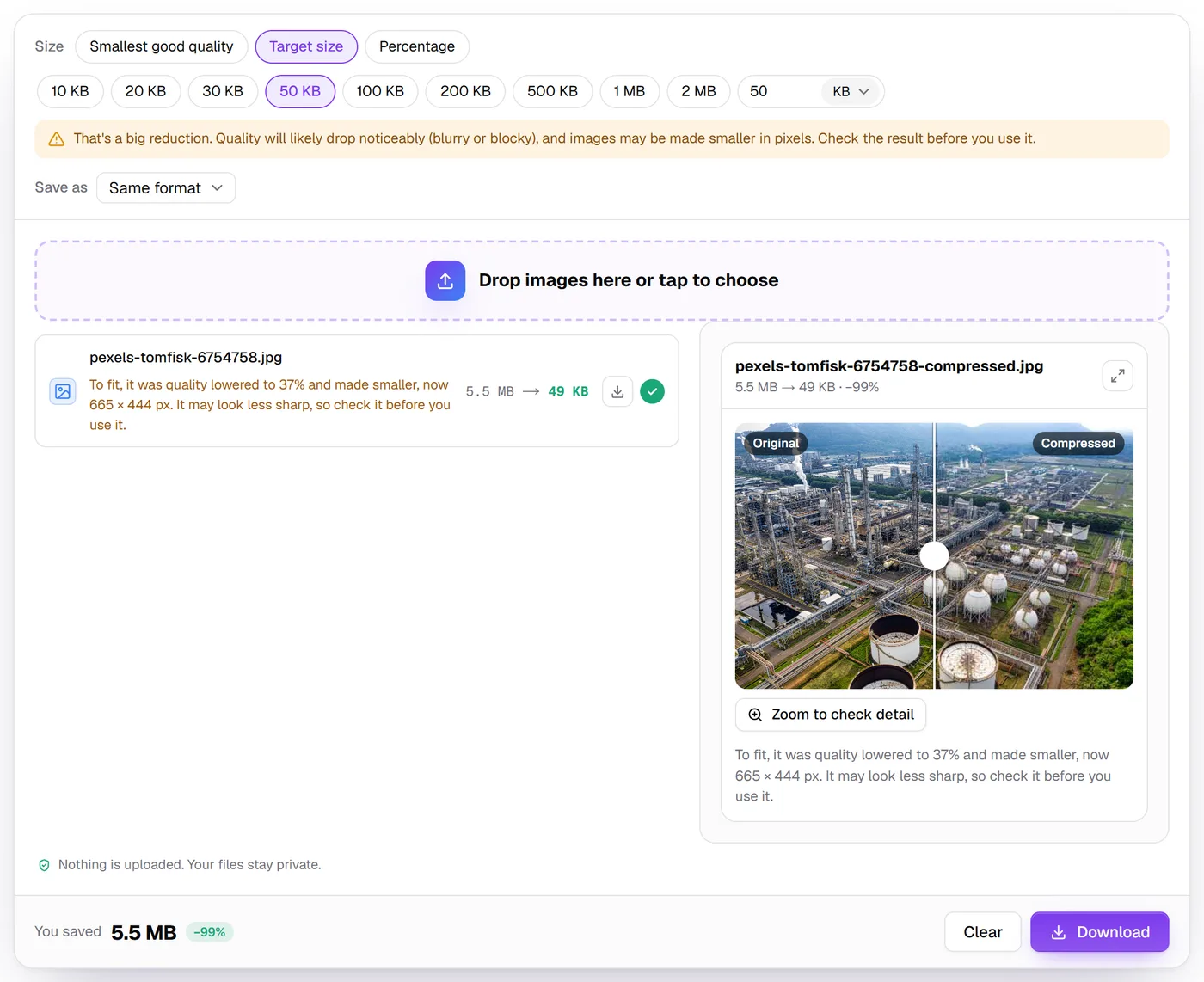
We put the same detailed photo, 5,427 × 3,623 pixels and 5.5 MB, through Quikdo's three size targets on 21 November 2026:
| Target | Result | Pixels | Quality |
|---|---|---|---|
| Under 100 KB | 99 KB | 930 × 621 | 36% |
| Under 50 KB | 49 KB | 665 × 444 | 37% |
| Under 20 KB | 20 KB | 409 × 273 | 37% |
All three are big enough for a form, where the photo is usually shown at a few hundred pixels. A plain portrait against a white wall keeps more pixels at the same KB, because there's less detail to store.
How to get a photo under 20, 50 or 100 KB
Open the target you need
Pick 20 KB, 50 KB or 100 KB. For another limit, open Compress image and type your own number in KB.
Drop in the photo
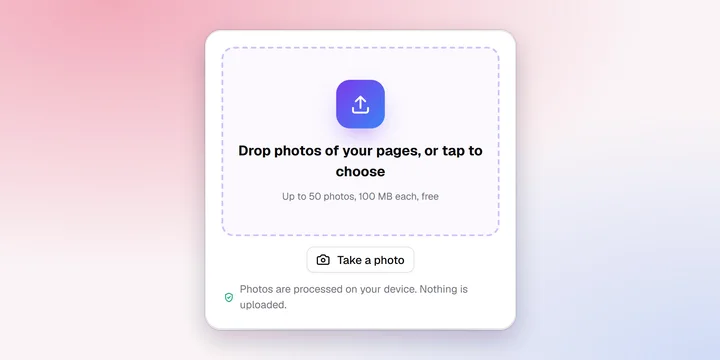
Drag it into the box, or tap to choose it on your phone. Several photos at once are fine. Nothing is uploaded: your browser does the work on your device.
Check the result
You'll see the old and new size, and a note saying how much the quality and pixels were lowered. Open the photo and check that faces and text are still clear.
Download and upload it to your form
Press Download. The file keeps your original name with -compressed added, so it's easy to find.
When the form gives pixels as well as KB
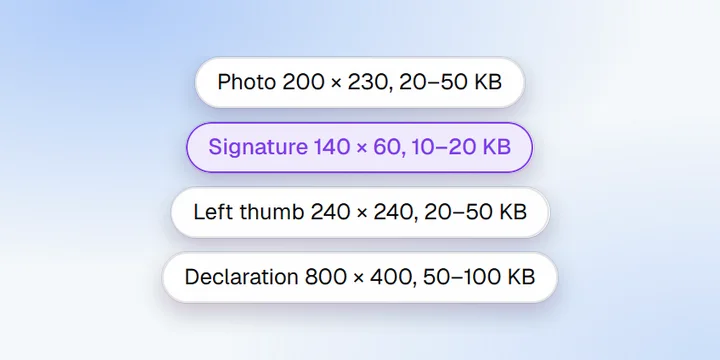
Many exam and government forms set both, for example 200 × 230 pixels, 20–50 KB. Compressing alone doesn't give the exact pixel size. Use Resize image instead: type the width and height, set the maximum KB, and both are met in one step. For GATE, IBPS and NEET, the ready-made presets are explained in Photo and signature size for GATE, IBPS and NEET forms.
When the file is too small
Some forms also set a minimum, such as 10–20 KB for a signature. A small, clean image can come out under it, and the form rejects it. Increase image size in KB brings it up to the minimum without changing how the picture looks.
Mistakes to avoid
- Don't send a screenshot instead of the photo. Screenshots are PNG files, which are much larger than a JPG of the same picture, and most forms want JPG.
- Don't compress the same file again and again. Each round loses more detail. Start from the original photo each time.
- Don't crop after compressing. Crop first with Crop image, then compress, so the KB budget goes to the part that matters.
- iPhone photos may be HEIC. Many forms don't accept HEIC. Turn it into a JPG with HEIC to JPG first, then compress.
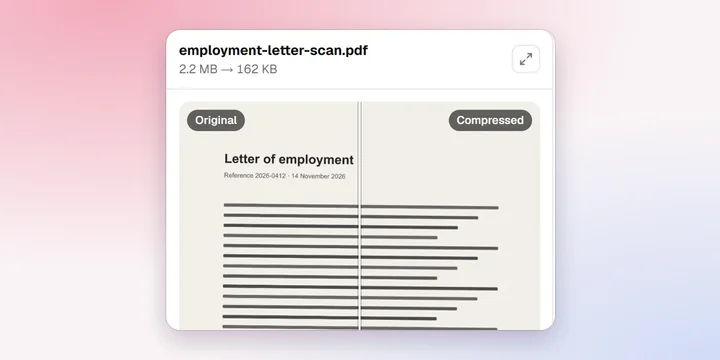
- For PDFs, use the PDF tool. A scanned document needs Compress PDF, which has its own 200 KB and 1 MB targets.
FAQ
How many KB are in 1 MB?
1,000 KB in the decimal count used by Mac and iPhone, or 1,024 KB in the binary count used by Windows. For forms, the difference only matters when a file is right at the limit.
How do I reduce a photo from MB to KB?
Use Compress image with a target such as 50 KB. The tool lowers the JPG quality and, if needed, the number of pixels until the file fits.
Is 0.05 MB the same as 50 KB?
Yes. Multiply MB by 1,000 to get KB, so 0.05 MB is 50 KB and 0.1 MB is 100 KB.
Why does my form reject a 50 KB photo?
It may count 1 KB as 1,000 bytes while your computer counts 1,024, so your file is slightly over. Compress to 48 KB and try again. Also check the format: many forms only accept JPG.
How do I check a photo's size?
On Windows, right-click the file and choose Properties. On a Mac, select it and choose Get Info. On iPhone, touch and hold the file in the Files app and tap Get Info.
Will my photo look worse at 20 KB?
It will be smaller and a little softer, but at the size forms display it, a face stays clear. Check the result before you upload it.