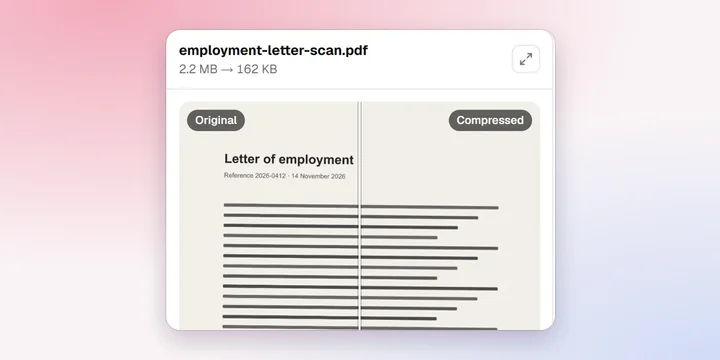
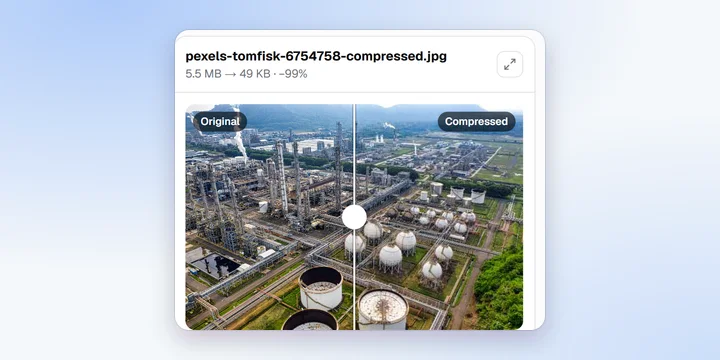
A PDF loses quality only in its pictures. Typed text, lines and tables are drawn as shapes, so a good compressor leaves them exactly as they are and only re-saves the scanned pages and photos inside. To keep it sharp, open Compress PDF, choose Light (or the largest size your upload form allows), and zoom in on the before-and-after view before you download. In our test, a 2.2 MB two-page scan came down to 449 KB on Light and still looked the same.
What "without losing quality" really means
A PDF holds two kinds of content:
- Text and drawings. Words you can select, table lines, logos made of shapes. These are tiny and stay sharp at any zoom. Quikdo doesn't touch them.
- Pictures. Every page of a scan is one big photo, and so is every photo you pasted in. Pictures make up almost all of a big PDF's size.
So compressing a PDF really means saving its pictures again with fewer pixels or stronger JPG compression. Done lightly, you can't see the difference on screen. Done hard, small print in scans gets soft and stamps get blotchy. "Without losing quality" in practice means: shrink the pictures only as far as you need to, and check the result.
A PDF made straight from Word, Google Docs or a website (not scanned) is mostly text. It's usually small already and won't shrink much, because there's little to take out.
Our test: one scan, three strengths
We compressed the same two-page scanned letter (2.2 MB, saved at full scanner quality, with a signature and a round stamp) in Quikdo's Compress PDF on 22 November 2026:
| Setting | Size | Page kept at | How it looked |
|---|---|---|---|
| Original | 2.2 MB | 3,508 px tall (300 DPI) | Full scanner quality |
| Light | 449 KB | 2,400 px (about 200 DPI) | No visible change, even zoomed in |
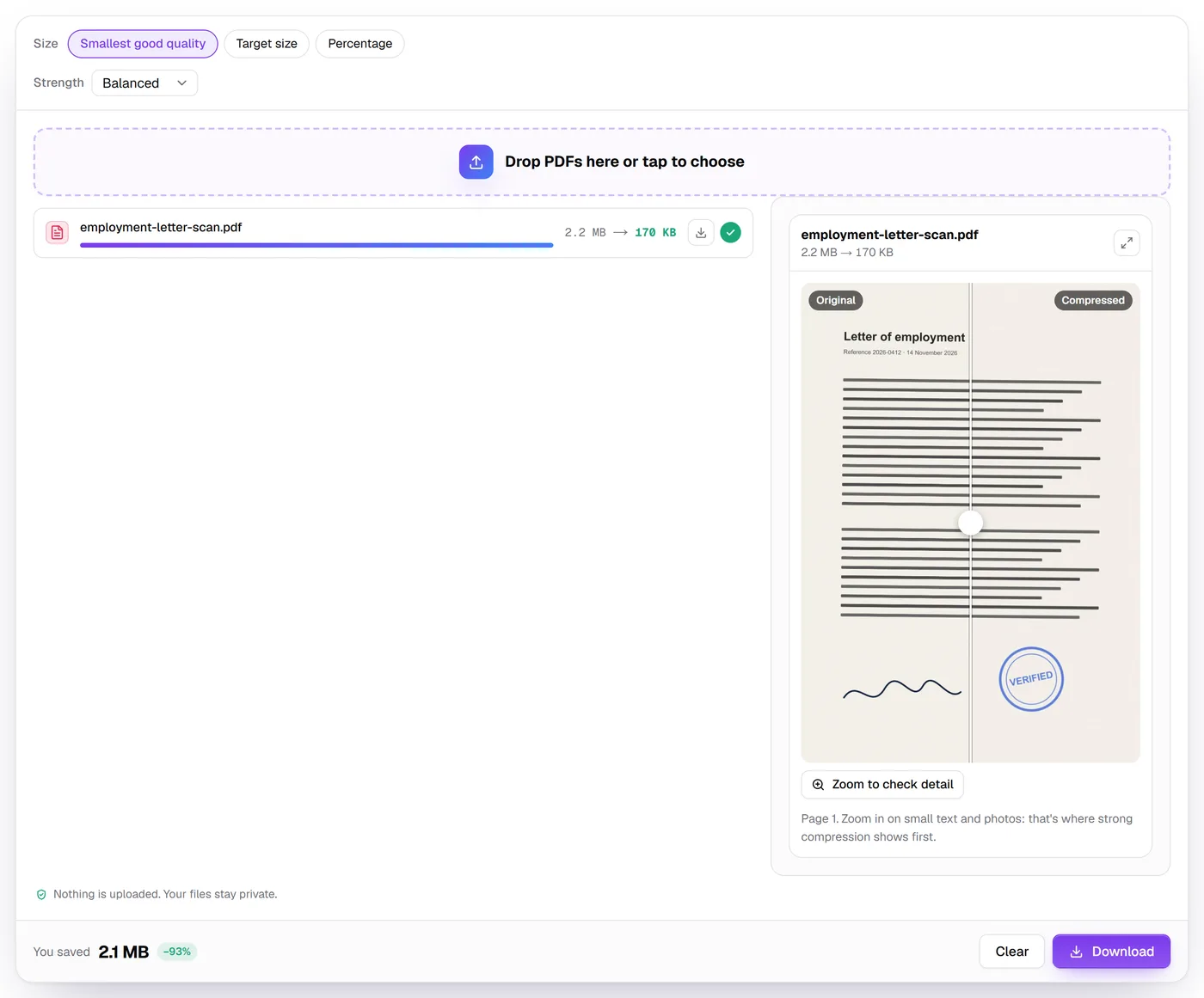
| Balanced (default) | 170 KB | 1,700 px (about 145 DPI) | Same at normal zoom; edges of the stamp slightly softer zoomed in |
| Max | 88 KB | 1,200 px (about 100 DPI) | Easy to read on screen; lines and small print visibly softer zoomed in |
The "page kept at" column is the scanned picture's height after compressing: fewer pixels is most of where the savings come from. That's a clean, mostly white page, which compresses well. A colour scan of a photo ID or a page with a coloured background shrinks less at each setting, so always look at your own result.
How to compress a PDF and keep it sharp
Open Compress PDF and add your file
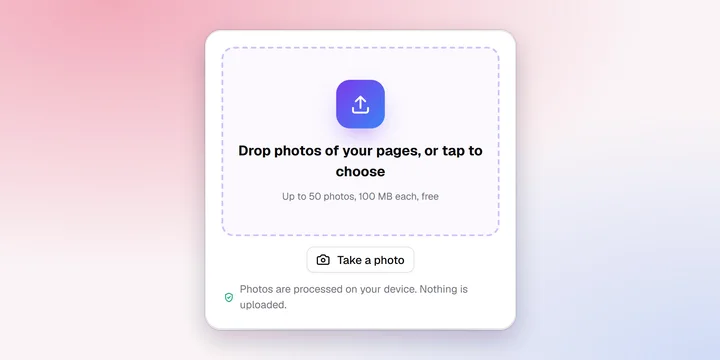
Drop the PDF into Compress PDF, or tap to choose it on your phone. You can add up to 50 PDFs at once. Nothing is uploaded: your browser does the work.
Pick the gentlest setting that's small enough
With no size limit to meet, choose Light under Strength. If a form has a limit, choose Target size and type that limit, such as 1 MB or 500 KB. Quikdo starts at the best quality and only goes lower if it has to.
Check the before-and-after view
Drag the slider across page 1 and press Zoom to check detail. Look at the smallest text, signatures and stamps: that's where compression shows first.
Download
Press Download. The file keeps your name with -compressed added. If the PDF was already as small as it could get, Quikdo gives you the original back instead of a bigger copy.
Which setting to choose
| You need | Choose |
|---|---|
| Smaller for email, no limit | Light |
| A form with a 1 MB or 2 MB limit | Under 1 MB or Under 2 MB |
| A form with a limit in KB | Target size, typed in KB (see MB to KB) |
| As small as possible, quality less important | Max |
A big target is always kinder to quality than a small one. If a form accepts 2 MB, don't squeeze to 200 KB just because you can.
Make it smaller before you compress
The best way to keep quality is to give the compressor less to do:
- Scan in black and white or grayscale for typed documents. Colour scans are much bigger and rarely needed for text. Already scanned in colour? Grayscale PDF turns it grey before you compress.
- Scan at 200 to 300 DPI, not 600. 300 DPI is plenty for small print.
- Send only the pages asked for. Remove the rest with Organise pages or take out a range with Split PDF.
- Compress once, from the original. Each round of compression loses a little more detail. If you need a smaller file, start again from the first copy.
- From Word, save the PDF at Standard. Word's Save as PDF offers "Standard (publishing online and printing)" and "Minimum size (publishing online)". Microsoft explains that Minimum size is for when file size matters more than print quality, so start with Standard and compress afterwards if you need to.
Other ways, and what to watch for
- Mac Preview: File > Export, then Quartz Filter > Reduce File Size. It's quick but gives you no control, and Apple warns the PDF "may be of lower quality than the original". Check small text afterwards.
- Adobe Acrobat: Save as Other > Reduced Size PDF is the simple option, and Optimized PDF lets you set image resolution and quality yourself (Adobe's guide). Both are in Adobe Acrobat, Adobe's paid PDF editor.
- Online compressors that upload your file: they work, but your document sits on someone else's server for a while. Quikdo compresses in your browser, so contracts, IDs and bank statements never leave your device.
A password-protected PDF has to be unlocked before it can be compressed. If you know the password, use Unlock PDF first.
FAQ
Can you compress a PDF without losing any quality at all?
Only if it has nothing to shrink. Text and drawings are never changed, but pictures are re-saved. On the Light setting the change is too small to see, and Quikdo never hands back a file bigger than the one you gave it.
Why did my PDF hardly get smaller?
It's probably made of text, not scans, so there are few pictures to shrink. A 20-page Word export is often only a few hundred KB already.
Will the text still be selectable and searchable?
Yes. Quikdo leaves the text layer alone, so you can still select, search and copy text exactly as before.
Which is better, Light or a target size?
Light when there's no limit. A target size when a form has one: Quikdo uses the best quality that fits under it.
Is it safe to compress private documents?
With Quikdo the PDF isn't uploaded. Compression happens in your browser, and the file stays on your phone or computer.
How do I compress a PDF on my phone?
Open Compress PDF in your phone's browser, tap the box to pick the file from Files or Drive, choose a setting, and download. It works on iPhone and Android.