Resize image in cm or inches
Forms and printers often give sizes in cm or inches, not pixels. Type the size and resolution, and Quikdo works out the pixels for you.
Nothing is uploaded. Your files stay private.
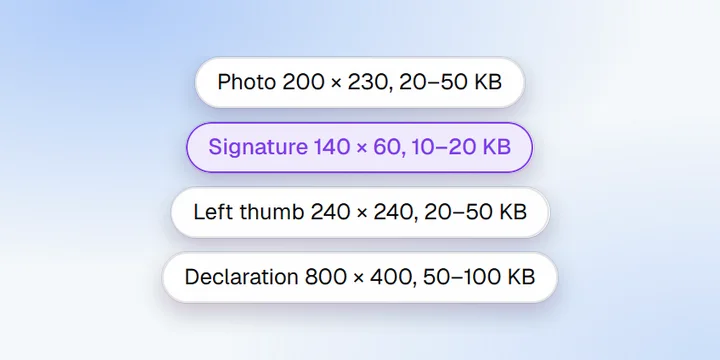
Popular uses
Opens the tool with the right settings already chosen.
How to resize an image
Three steps, about ten seconds.
- 01
Add your image
Drop a JPG, PNG or WebP file in the box, or tap to choose one.
- 02
Set the size
Type a width and height in pixels, choose a file size limit, or both.
- 03
Download
Check the new dimensions and file size, then save the image.
How cm and inches turn into pixels
A picture on screen has only pixels. A size in cm or inches needs a resolution (DPI, dots per inch) to become pixels: pixels = inches × DPI, and 1 inch is 2.54 cm. So 3.5 cm at 300 DPI is 413 pixels, and at 200 DPI it's 276.
Use the DPI your form or printer asks for. Prints usually want 300 DPI. Many Indian forms say 200 DPI. If no DPI is given, 300 is the safe choice for photos.
When you print, choose the same size in cm or inches in the print settings. The file holds the pixels; the printer decides the paper size from them.
Frequently asked questions
How many pixels is 3.5 × 4.5 cm?
At 300 DPI, 413 × 531 pixels. At 200 DPI, 276 × 354.
How do I convert cm to pixels?
Divide the cm by 2.54 and multiply by the DPI. For example, 10 cm at 300 DPI is 10 ÷ 2.54 × 300 ≈ 1181 pixels.
How do I resize a photo to 20 KB?
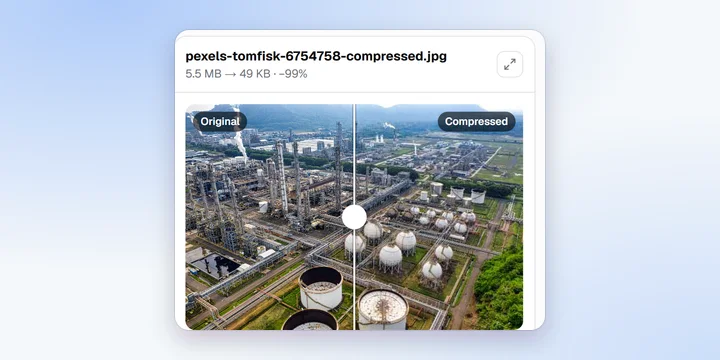
Choose 20 KB as the target size. The photo is saved at the best quality that fits, and scaled down if it has to be.
How do I resize an image to 50 KB?
Choose 50 KB as the target, and add a width and height too if your form asks for exact pixels.
Can I resize an image without losing quality?
Making a photo smaller in pixels keeps it sharp. A KB target may lower quality a little to fit, and making a small photo bigger can't add detail.
Guides
Step-by-step help with resize image.