Convert JPG to PDF under 200 KB
For forms that want one PDF under 200 KB. Add your photos and Quikdo builds the PDF at the best quality that still fits.
Nothing is uploaded. Your files stay private.
Popular conversions
Opens the tool with the right settings already chosen.
How to convert images to PDF
Three steps, about ten seconds.
- 01
Add your images
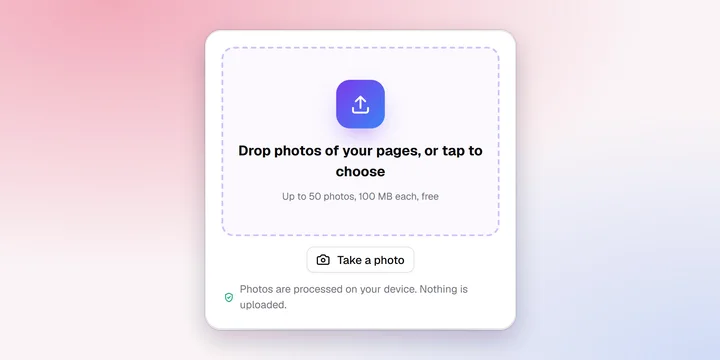
Drop up to 100 photos or scans, or tap to choose them.
- 02
Set the order
Use the arrows to reorder, then pick the page size and margin.
- 03
Create the PDF
Press Create PDF and save your file.
Getting photos into a 200 KB PDF
Quikdo makes the PDF at full quality first. If it's over 200 KB, it saves the photos again a little smaller and checks again, until the whole PDF fits. You don't need to compress the photos first.
One or two phone photos of documents fit easily and stay readable. Five or more pages in 200 KB start to look soft, so zoom in on the preview before you submit.
Need 100 KB or 50 KB? Type it in the size box. If the smallest result is still too big, the tool tells you the size it reached: remove a page or crop the photos to just the document first.
Frequently asked questions
How do I convert JPG to PDF under 200 KB?
Add your photos here, put them in order and press Create PDF. The size is already set to 200 KB.
Can I make it under 100 KB?
Yes. Type 100 in the size box. One page usually fits; several pages will look softer.
How do I convert JPG to PDF?
Drop your JPG photos in, put them in order and press Create PDF.
How do I put several photos into one PDF?
Add all the photos at once, drag them into order, and press Create PDF. Each photo becomes one page.
Can I convert iPhone photos (HEIC) to PDF?
Yes. Drop HEIC photos in directly; there's no need to convert them first.