Convert TIFF to PDF
Scanners and fax software often save TIFF, which most browsers and phones can't open. Every page of the TIFF becomes a PDF page, in order.
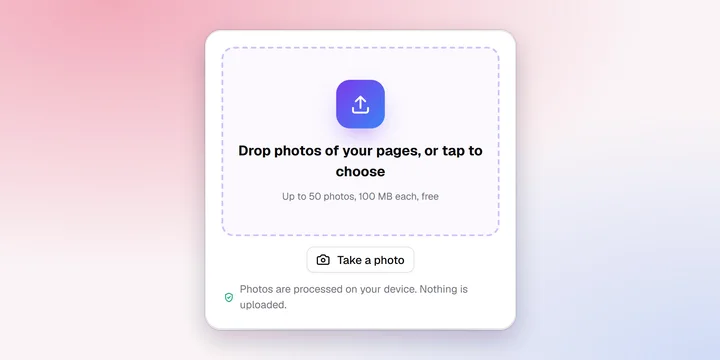
Nothing is uploaded. Your files stay private.
Popular conversions
Opens the tool with the right settings already chosen.
How to convert images to PDF
Three steps, about ten seconds.
- 01
Add your images
Drop up to 100 photos or scans, or tap to choose them.
- 02
Set the order
Use the arrows to reorder, then pick the page size and margin.
- 03
Create the PDF
Press Create PDF and save your file.
Multi-page TIFF files
One TIFF can hold many pages: a 12-page fax is often a single .tif file. Quikdo reads every page and adds each one as its own image, so you can check the order, remove a page or add more files before you create the PDF.
Chrome, Edge and Firefox can't display TIFF, so Quikdo decodes it on your device. Uncompressed, LZW, ZIP, PackBits, JPEG and black-and-white fax (CCITT) TIFFs all work.
Pages are stored as high-quality JPG to keep the PDF small. For black-and-white fax pages with small print, choose Sharp text (lossless) under Images to keep every line crisp.
Frequently asked questions
How do I convert a multi-page TIFF to PDF?
Drop the .tif file in. Each page appears as its own image; press Create PDF to get them all in one PDF.
Why can't I open my TIFF file?
Most browsers and many phone apps don't support TIFF. Converting it to PDF makes it open anywhere.
How do I convert JPG to PDF?
Drop your JPG photos in, put them in order and press Create PDF.
How do I put several photos into one PDF?
Add all the photos at once, drag them into order, and press Create PDF. Each photo becomes one page.
Can I convert iPhone photos (HEIC) to PDF?
Yes. Drop HEIC photos in directly; there's no need to convert them first.