Convert WebP to PDF
Pictures saved from websites are often WebP, which some apps and upload forms reject. Put them in a PDF that opens anywhere.
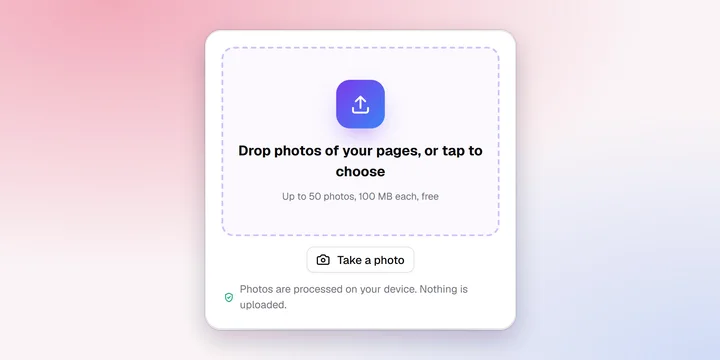
Nothing is uploaded. Your files stay private.
Popular conversions
Opens the tool with the right settings already chosen.
How to convert images to PDF
Three steps, about ten seconds.
- 01
Add your images
Drop up to 100 photos or scans, or tap to choose them.
- 02
Set the order
Use the arrows to reorder, then pick the page size and margin.
- 03
Create the PDF
Press Create PDF and save your file.
WebP images to PDF
Most websites now serve images as WebP, so a picture saved from Chrome or Google Images usually ends in .webp. Each one becomes a PDF page, in the order you set.
Transparent areas become white. Animated WebP files are added as their first frame.
Want separate JPG or PNG files instead of a PDF? Use Convert image.
Frequently asked questions
Why is my image a .webp file?
Websites use WebP because it's smaller than JPG. Your browser saves the image in the format the site sent.
Can I convert several WebP files into one PDF?
Yes. Add them all, drag them into order and press Create PDF.
How do I convert JPG to PDF?
Drop your JPG photos in, put them in order and press Create PDF.
How do I put several photos into one PDF?
Add all the photos at once, drag them into order, and press Create PDF. Each photo becomes one page.
Can I convert iPhone photos (HEIC) to PDF?
Yes. Drop HEIC photos in directly; there's no need to convert them first.