Convert screenshots to PDF
Each screenshot becomes a page of exactly its own shape, with no white border, and is kept lossless so small text stays sharp.
Nothing is uploaded. Your files stay private.
Popular conversions
Opens the tool with the right settings already chosen.
How to convert images to PDF
Three steps, about ten seconds.
- 01
Add your images
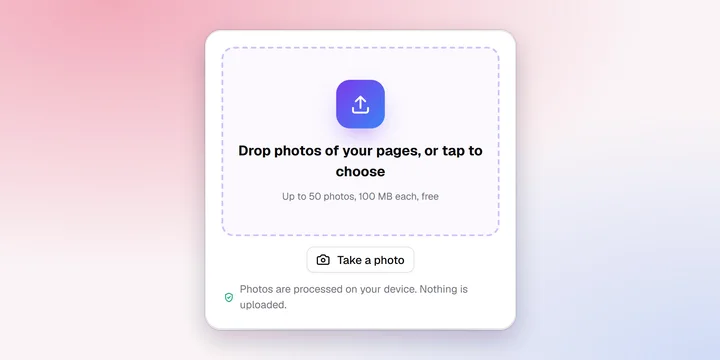
Drop up to 100 photos or scans, or tap to choose them.
- 02
Set the order
Use the arrows to reorder, then pick the page size and margin.
- 03
Create the PDF
Press Create PDF and save your file.
Set up for screenshots
This page starts with Fit to image, no margin and Sharp text (lossless). Screenshots are mostly text and flat colour, and JPG blurs both slightly; lossless keeps every pixel, so the PDF reads like the screen did.
Phone screenshots make tall, narrow pages, which is right for reading on a screen. To print, switch the page to A4 or Letter and each screenshot is fitted on a full sheet.
Lossless pages are bigger. If the PDF is too large to send, switch Images to Smaller file, or set a target size.
Frequently asked questions
How do I put several screenshots in one PDF?
Add them all at once, drag them into order and press Create PDF.
Why is the PDF bigger than with JPG?
Lossless keeps every pixel of the screenshot. Choose Smaller file under Images for a much smaller PDF.
How do I convert JPG to PDF?
Drop your JPG photos in, put them in order and press Create PDF.
How do I put several photos into one PDF?
Add all the photos at once, drag them into order, and press Create PDF. Each photo becomes one page.
Can I convert iPhone photos (HEIC) to PDF?
Yes. Drop HEIC photos in directly; there's no need to convert them first.